Import Your Data, Your Way
Moving your inventory data from a spreadsheet or another system can often feel like a daunting task. We've all been there: staring at a spreadsheet with thousands of rows, dreading the hours of copy-pasting, reformatting, and fixing errors. The fear of data loss or a messy transition can be enough to stop you from upgrading to a better system altogether.
At Maxilist, we believe your data should work for you, not the other way around. That's why we engineered our Smart Data Import feature to be the most intuitive and flexible on the market. Forget rigid templates and frustrating error messages. It's time to liberate your data and get it into a powerful, organized system in minutes, not days.

The Problem with Traditional Data Imports
For too long, importing data into an inventory app has been a chore. Most solutions force you into a corner with a process that looks something like this:
- Download a very specific, rigid template file.
- Manually copy and paste your data from your old spreadsheet into this new template, making sure every column name matches perfectly.
- Miss one column or have an extra space? The upload fails with a vague error.
- Try again. And again.
- Finally, the data is in, but what if you spot a mistake? You're stuck correcting items one by one or re-doing the entire import.
This process is time-consuming, error-prone, and incredibly frustrating. It's a major barrier for businesses and individuals who are ready to level up their inventory management but can't afford the downtime.
The Maxilist Way: Import Your Data, Your Way ✨
Our Smart Data Import throws the old rulebook out the window. We designed a guided process that puts you in complete control, adapting to your data, not forcing your data to adapt to us.
Here's how simple it is:
Step 1: Upload Your File
Navigate to the import page in the Maxilist app and upload your existing CSV or spreadsheet file. That's it. No need to hunt for a special template. Your current file is the perfect file. Just make sure your data has a header row that identifies each column.
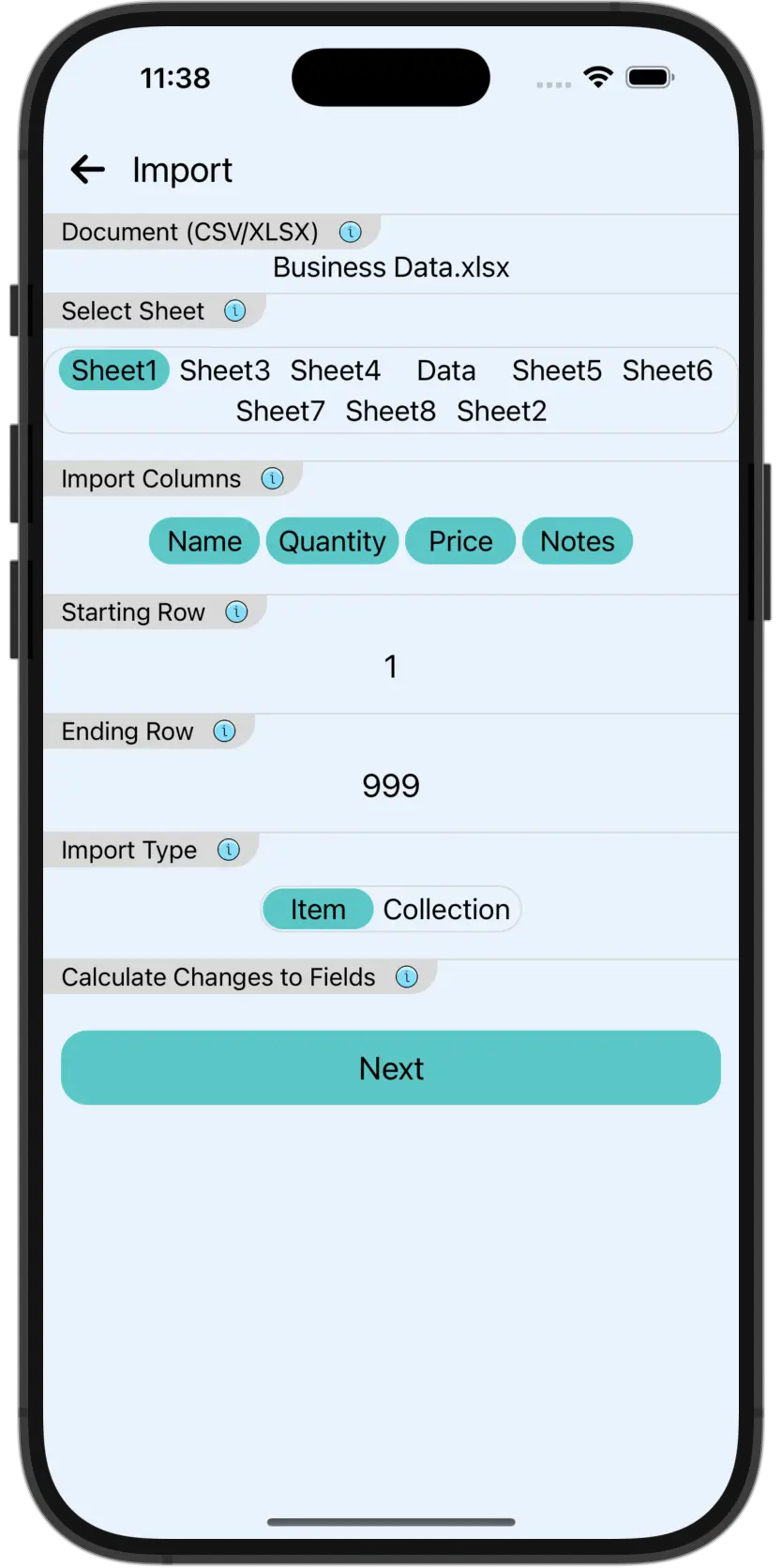
Step 2: You're the Director 🎬 Once uploaded, Maxilist gives you a preview of your data. Here, you call the shots:
- Select Columns: Don't need to import your "Internal Notes" column? Simply uncheck it. You only import the data you need.
- Select Rows: Want to exclude a few test items or old stock from the import? Just deselect the rows you wish to ignore.
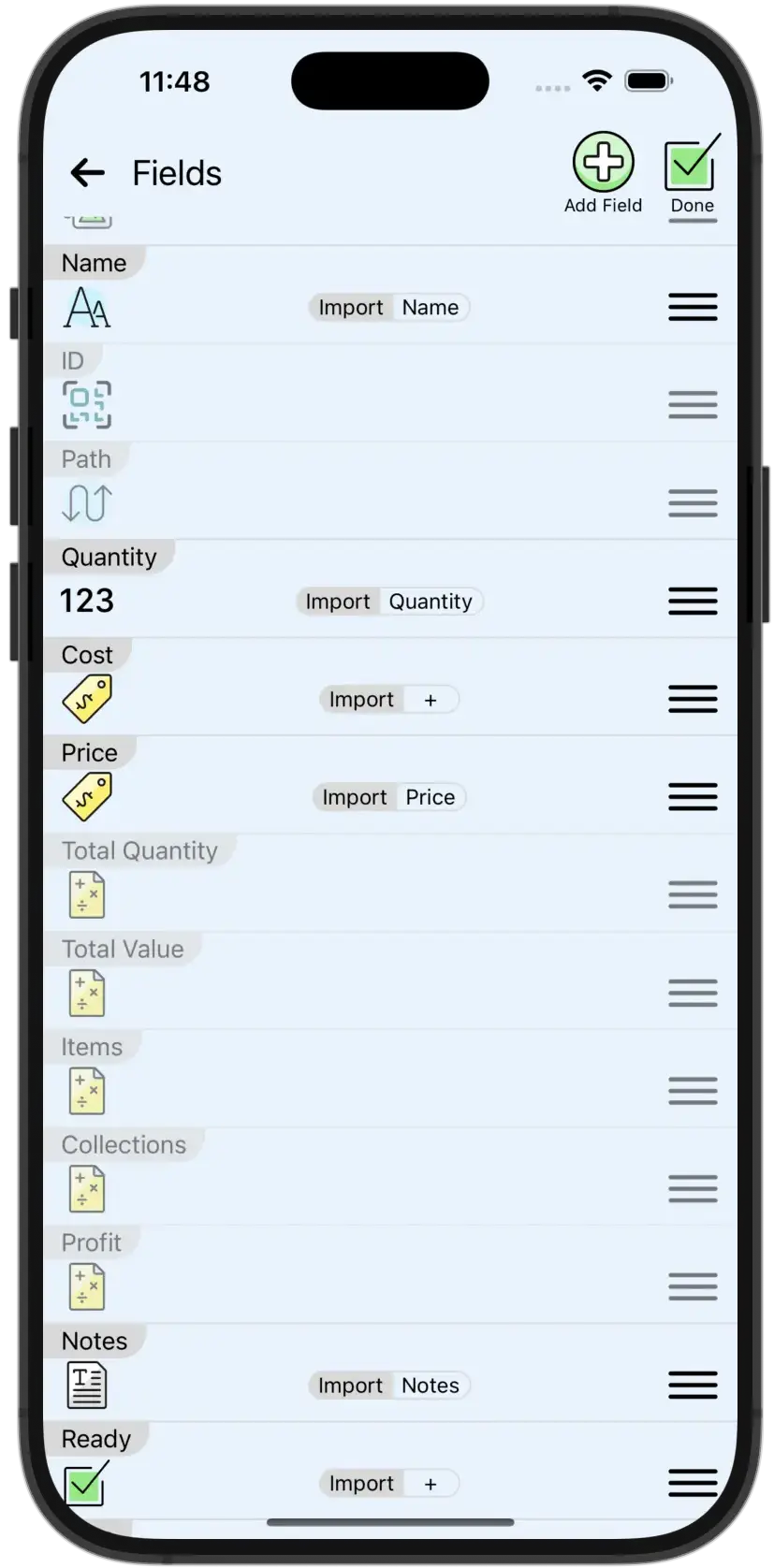
Step 3: The Magic of Smart Mapping 🧠 This is where the real power shines. Instead of forcing you to match column headers, Maxilist analyzes your file and intelligently suggests how to map your data to fields within the app.
- Does your spreadsheet have a column named "Product_SKU"? Maxilist will suggest mapping it to the "ID/SKU" field.
- Got a column called "Cost"? We'll map it to "Price."
- Have data that doesn't fit an existing field? No problem! Maxilist will suggest creating a new custom field for you on the fly. You just have to approve it.
You have the final say. Accept our suggestions or manually map any column to any field you choose. This flexibility ensures all your valuable data finds a home.
Step 4: Review in the Cart 🛒 Here's a feature you won't find anywhere else. Instead of dumping the data directly into your inventory, Maxilist adds all your imported items temporarily into the cart. This is your safety net. It's a staging area where you can review everything before making it final.
- Inspect Everything: Scroll through the items to make sure they look right.
- Make Quick Edits: Spot a typo? Fix it right in the cart.
- Use Bulk Operations: Realize you need to add a "Warehouse A" tag to all 500 imported items? Select all and use our powerful Bulk Operations engine to modify them all at once.
This step alone saves immense time and prevents "importer's remorse."
Step 5: Finalize with Confidence ✅ Once you're happy with how everything looks in the cart, tap to finalize. Your data is now seamlessly integrated into your Maxilist collections, complete with all custom fields, images (if applicable), and quantities.
Why Easy Data Import is a Game-Changer
Having a seamless import process isn't just a "nice-to-have" feature; it's fundamental to efficient inventory management.
- Saves Countless Hours: Frees you and your team from tedious manual entry to focus on what matters—running your business.
- Eliminates Costly Errors: Manual data transfer is a recipe for typos and mistakes that can lead to stockouts or overstocking. Our process preserves data integrity.
- Empowers Everyone: You don't need to be an IT expert to migrate your data. Our guided process is designed for all users, regardless of technical skill.
- Facilitates Growth: As you receive new product lists from suppliers or expand your product lines, you can import new data in bulk with just a few taps.
Maxilist vs. The Old Way: A Quick Comparison
| Feature | The "Old Way" (Typical Apps) | The Maxilist Way (Smart Import) |
|---|---|---|
| Templates | ❌ Rigid, mandatory templates. Your data must conform. | ✅ No templates required. Upload your existing file as-is. |
| Mapping | ⚙️ Strict column header matching. Fails on mismatch. | 🧠 Intelligent mapping. The app suggests matches and helps you create new fields. |
| Flexibility | 📉 All-or-nothing import. Little to no control over what gets imported. | 👍 Full control. Select exactly which rows and columns you want to import. |
| Review & Errors | 💥 Data is imported directly. Mistakes must be fixed one-by-one afterward. | 🛒 Pre-import review in cart. Inspect, edit, and bulk-modify before finalizing. |
Frequently Asked Questions (FAQ)
What file types can I import?
You can import standard .csv files as well as spreadsheet files like .xlsx.
Is there a limit to how many rows I can import?
Maxilist is built for performance and can handle large datasets. Specific limits are generous and depend on your subscription plan, but they are designed to support small businesses and large operations alike.
What happens if my column name is completely different, like "Item_Identifier" instead of "SKU"?
Our smart mapping will still try to make an educated guess. If it can't, you can easily manually map the "Item_Identifier" column to your "SKU" field in the mapping step. It takes two seconds!
Can I undo an import?
The cart acts as your undo! Since nothing is final until you approve it from the cart, you can simply clear the cart to cancel the import. And for other actions, Maxilist has a powerful Undo function to reverse the last change.