Collaborative User and Account Management
Maxilist is more than just another inventory management app — it's a powerhouse designed for real-world team collaboration and multi-business flexibility. One of the standout features that sets Maxilist apart is its multi-user and multi-account functionality, engineered for teams that need both structure and agility.
Whether you're a retailer, service provider, or small manufacturer, being able to collaborate efficiently and manage multiple businesses or branches under one roof isn't optional — it's essential.
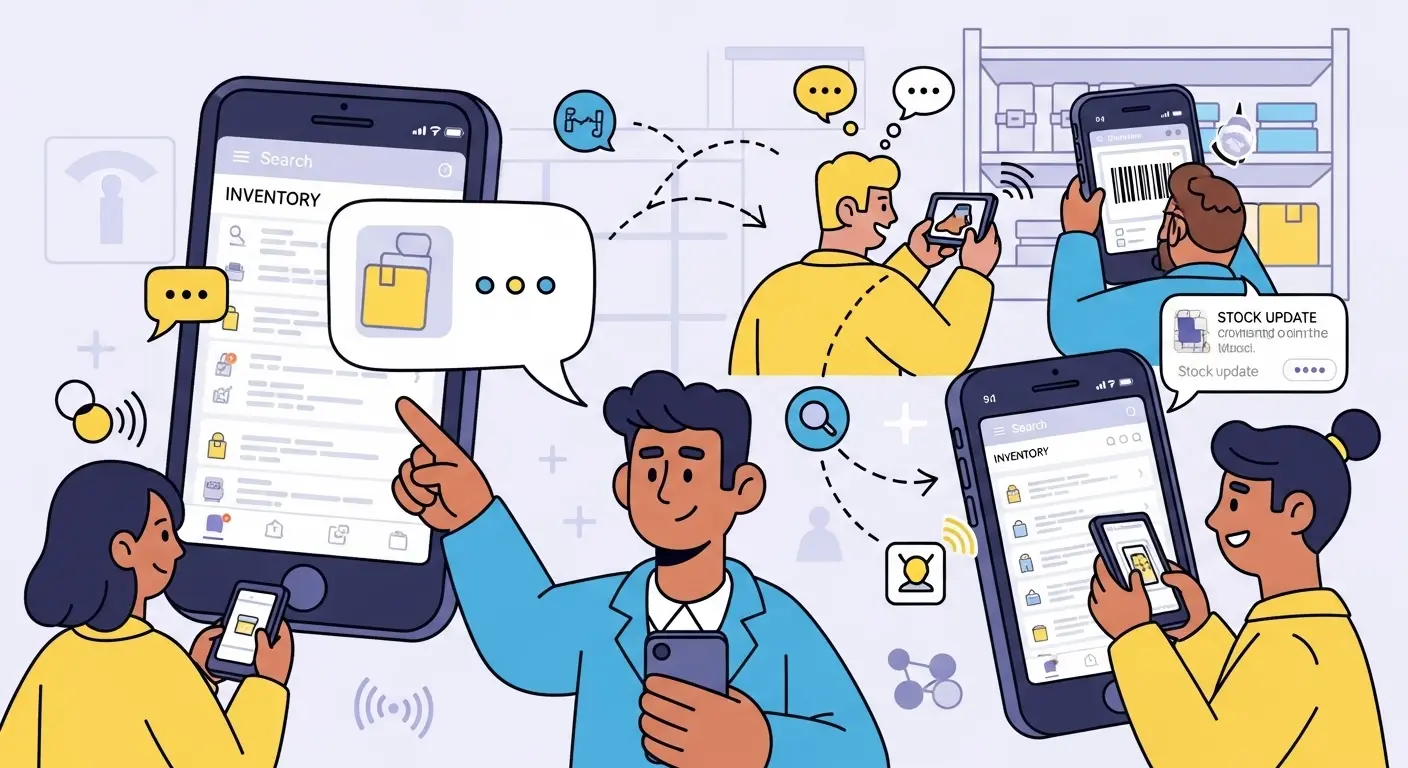
👥 What Does Multi-User Support Mean in Maxilist?
Maxilist allows teams to collaborate inside a single account, with each member having individual access.
Why This Matters:
- ✅ Team-Based Workflows: Every team member can access and interact with the same inventory data — no duplicate spreadsheets or conflicting files.
- ✅ User Accountability: Actions can be traced back to users, ensuring auditability.
- ✅ Permission Control: Only admins and owners can add users — keeping sensitive actions protected.
- ✅ Streamlined Onboarding: Add users quickly by sharing an invite code.
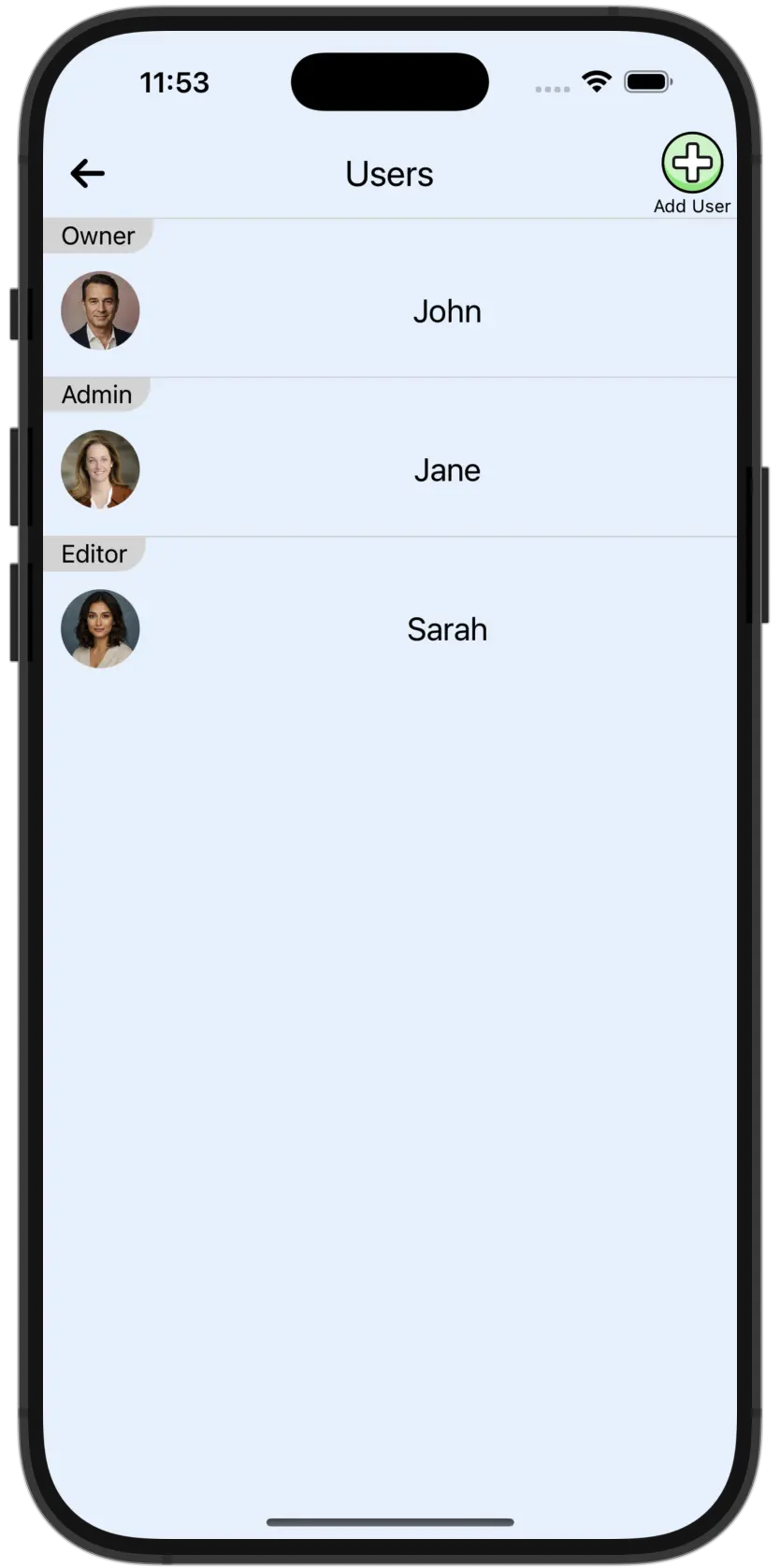
📍 How to Add Users in Maxilist: Settings → Users → Add User
Admins and owners will receive a unique code to share with new users.
📸 [Insert Screenshot Here: User Management Panel - Add User Screen]
🔄 What is Multi-Account Support?
With Maxilist, you can belong to and manage multiple accounts or businesses — all from the same app.
Why You Need It:
- ✅ Separate Business Entities: Each account is isolated with its own data, settings, and users — ideal for users managing multiple brands, locations, or departments.
- ✅ Switching Made Simple: Users can switch accounts in seconds without logging out.
- ✅ Clear Boundaries: No risk of mixing up collections or reports between teams.
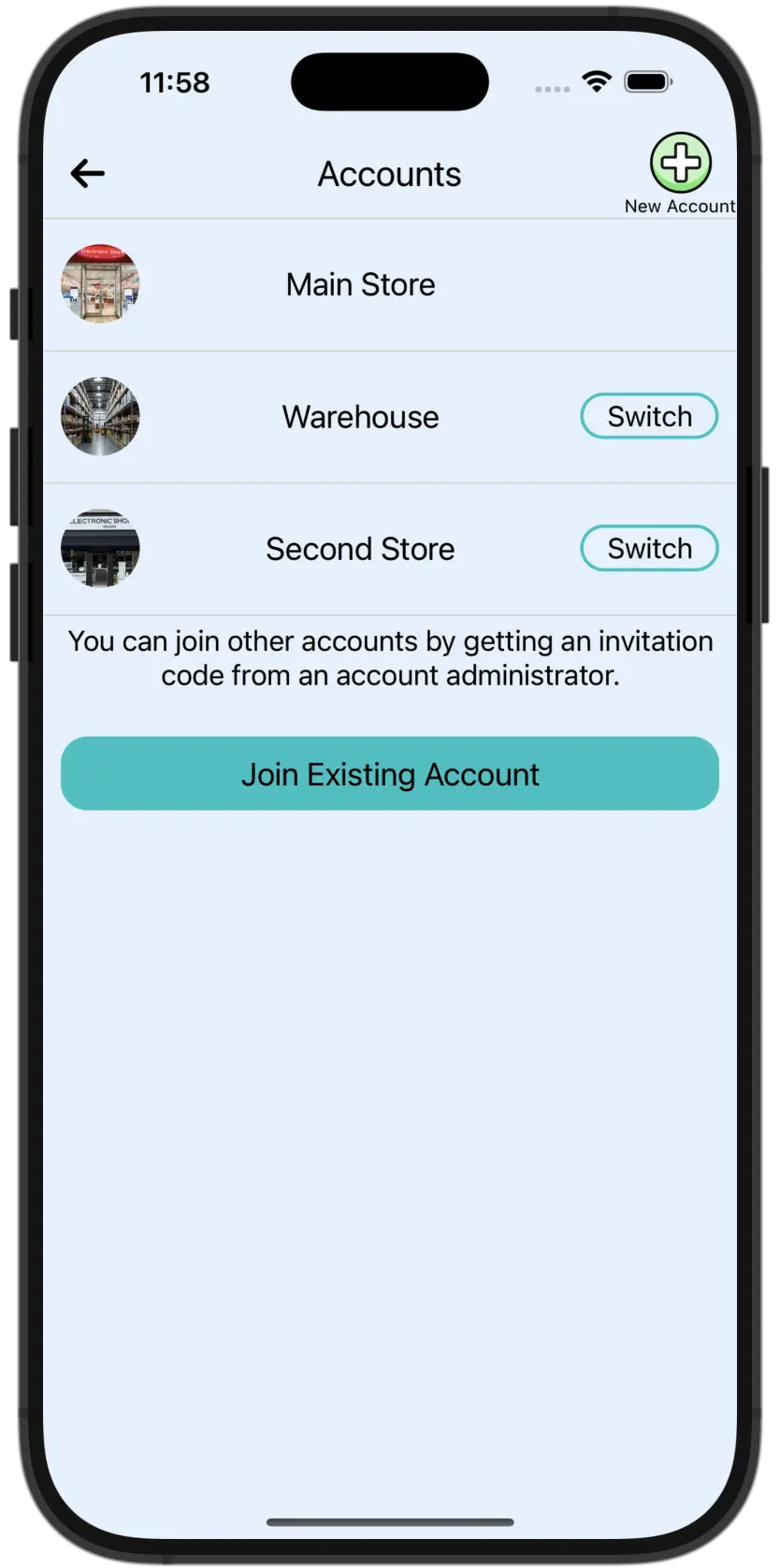
📍 How to Join or Add Accounts:
- To join an account:
Settings → Accounts → Join Existing Account - To create a new account, owner can go to:
Settings → Accounts → New Account - To switch a different account, owner can go to:
Settings → Accounts → Switch
🧠 Real-World Use Cases
🔄 Scenario 1: One Technician, Multiple Jobs
A freelance technician works with three different companies. With Maxilist:
- They can join all three company accounts
- View only the collections, fields, and labels relevant to each
- Keep job data segmented and secure
🛍️ Scenario 2: Chain Retail Store
A retail chain with multiple branches:
- Creates one account per store
- Assigns regional managers to all accounts
- Maintains central control while allowing local autonomy
🆚 Comparison: Single-User vs Multi-User/Account System
| Feature | Single User App | Maxilist (Multi-User + Multi-Account) |
|---|---|---|
| Team Collaboration | ❌ Manual sharing only | ✅ Real-time, in-app |
| Audit Trail | ❌ Not available | ✅ Per-user activity history |
| Role Control | ❌ N/A | ✅ Admins and Owners Only |
| Multiple Business Units | ❌ Requires separate apps | ✅ One app, many accounts |
| Centralized Control | ❌ No | ✅ Yes |
| Scalability | ❌ Limited | ✅ Unlimited Users & Accounts |
🚀 Key Benefits of Maxilist's Multi-User + Multi-Account System
- 🔐 Granular Control: Only authorized users can modify or add users/accounts.
- 🧩 Customizable Per Account: Each account can have unique:
- Custom Fields
- Collections
- Label Templates
- Analytics Filters
- 📡 Cloud-Synced Across Devices: All updates reflect instantly for every team member.
💡 Tips for Maximizing This Feature
- Use personalized user profiles (Settings → Profile) to identify who's doing what.
- Separate vendors or clients by using different accounts instead of mixing data.
- Assign user-specific permissions for roles like viewer, editor, or admin.
Frequently Asked Questions
**1. Can I be part of more than one Maxilist account at once
Yes! You can switch between accounts anytime without signing out. However, you need to be online to do this action. This is for added security.
**2. Who can add new users to an account
Only account Admins and Owners can add users.
**3. Can each account have different settings and fields
Absolutely. Every account has its own custom fields, folders, collections, and branding.
**4. Is there a limit to the number of users in one account
It depends on which premium plan you choose.
**5. Will users see all accounts they belong to on login
Yes, users can select from all joined accounts directly after logging in.
**6. Can I remove a user from an account
Yes. Admins and owners can remove any user through the Users section in the app.
🎯 Final Thoughts
In a world where inventory management must adapt to teams, multiple locations, and growing operations, Maxilist provides the flexibility and control modern businesses need. Whether you're managing a single store or a sprawling chain of operations, multi-user and multi-account support isn't just a nice-to-have — it's a strategic advantage.
Empower your entire team, manage multiple businesses, and track everything in one place — that's the Maxilist promise.