Custom Fields
Out of the box, Maxilist lets you track essential information like an item's name, quantity, and price. But we know that every inventory is unique. A clothing store tracks different details than an electronics repair shop, and a comic book collector needs different information than a home inventory manager.
This is where Custom Fields come in. They are the key to making Maxilist work exactly the way you need it to.
What Are Custom Fields?
Custom Fields are additional data fields that you create yourself to track specific information that isn't included by default. Think of it like adding your own specialized columns to a spreadsheet, but much more powerful and integrated directly into your items and collections.
This feature allows you to capture every important detail about your assets, ensuring no information is ever lost.
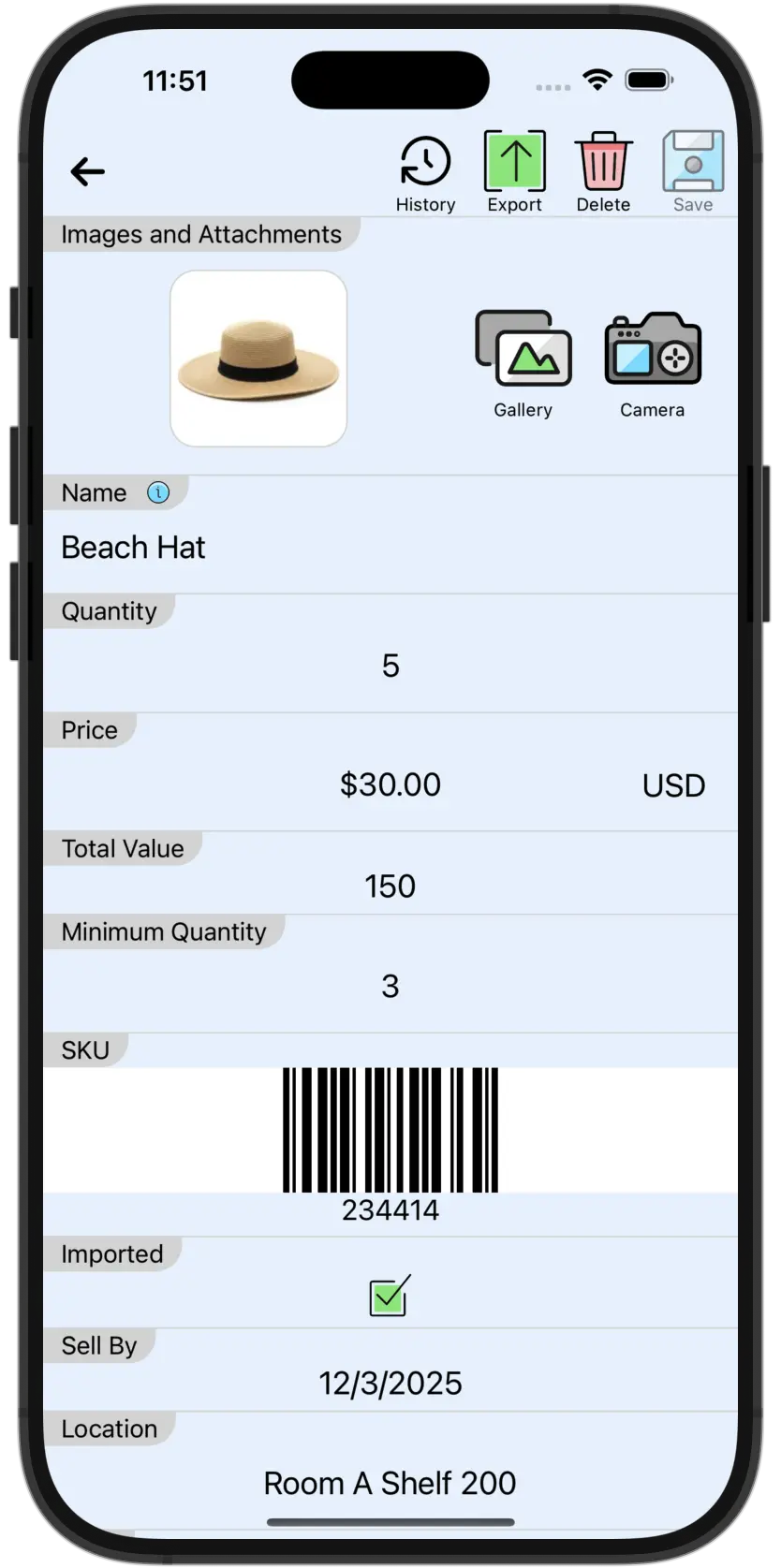
Why They Are So Powerful: Examples
The possibilities are endless, but here are a few common examples to give you an idea of how you can use them:
-
For a Retail Business:
SKU(Text Field)Supplier(Text Field)ColorandSize(Text Fields)Reorder Point(Number Field)
-
For a Restaurant or Cafe:
Expiration Date(Date Field)Lot Number(Number Field)Distributor(Text Field)
-
For Trades or Equipment Tracking:
Serial Number(Text or Number Field)Purchase Date(Date Field)Warranty Expiration(Date Field)Assigned To(Text Field)
-
For a Personal Collection:
Condition(e.g., Mint, Near Mint)Year of Release(Number Field)Acquisition Date(Date Field)Grading Company(Text Field)
Fields for Items vs. Collections
You can add Custom Fields to both your Items and your Collections, giving you two levels of organization.
- Item Custom Fields: These are for details specific to the individual item (e.g., a unique
Serial Number). - Collection Custom Fields: These are normally defined as filters that group similar items together (e.g., a
Conditionfield might have a value ofMintfor all items that are in mint condition).
By using Custom Fields, you transform Maxilist from a generic inventory app into a personalized system built specifically for your needs.
Adding Custom Fields
You can add custom fields by the following steps:
- Navigate to
Settings→Fields→ItemsorCollections. - Click on the
Add Fieldbutton on top of the page. - Select the field type (e.g. "Number", "Date", etc)
- Fill in the field name and description (optional).
- Fill the rest of parameters specific to the field type.
- Press
Donebutton on top of the page. - Once added/modified all you custom fields, press
Savebutton on top of the page.
Editing Custom Field Properties
To edit a custom field, follow these steps:
- Navigate to
Settings→Fields→ItemsorCollections. - Select the field you want to edit.
- Edit all the properties you want.
- Press
Donebutton on top of the page. - Once modified all you custom fields, press
Savebutton on top of the page.
You can see how the field will look like on the item detail page in the Preview section when editing a custom field.
Deleting Custom Fields
To delete a custom field, follow these steps:
- Navigate to
Settings→Fields→ItemsorCollections. - Select the field you want to delete.
- Press
Deletebutton on top of the page. - Once modified all you custom fields, press
Savebutton on top of the page.
You can only delete a field that is not being used in any other formula or filters.
Deleting fields are irreversible, in case of mistakes, please contact our support team and we may be able to help recovering the deleted field.
How to re-order Custom Fields
To reorder a custom field, follow these steps:
- Navigate to
Settings→Fields→ItemsorCollections. - Drag the field using the three line icon on the right side of the field to move it to the desired position.
- Once modified all you custom fields, press
Savebutton on top of the page.
Common Properties of Custom Fields
Each field has at least the following properties:
-
Name- e.g.,
Serial Number - Required
- This is the name of the field. It will be displayed on the item detail page and everywhere else where selection of the field is required.
- e.g.,
-
Description- e.g.,
The SKU for the item. - Optional
- This is the description of the field. If set, it will be displayed on the item detail page when the user presses the info icon ℹ️ next to the field name.
- e.g.,
-
Default- e.g.,
N/A - Optional
- This is the default value of the field when creating a new item.
- e.g.,
Depending on the type of the field, you can also set the following properties:
-
Required- e.g., ✅
- Optional
- If set, the field will be required to have a value when creating a new item.
-
Show in Preview- e.g., ✅
- Optional
- If set, the field will be shown in the item or collection's preview. This is useful for important fields you want to see at a glance without opening the item detail page.