Sorting Items
Organizing your inventory lists is key to working efficiently. The Sort feature in Maxilist allows you to instantly reorder your items and collections based on the data in any field.
Whether you want to see your newest items first, find your lowest-stock products, or arrange your assets alphabetically, sorting provides a dynamic way to view your data exactly how you need it.
It's important to know the difference between sorting and filtering:
- Filtering hides items that don't match your criteria.
- Sorting reorders all visible items in the list.
How to Sort Your Items
Applying a sort order to any list takes just a few taps.
- Navigate to a list of items, for example, by opening one of your collections.
- At the top of the list, locate and tap the Sort button.
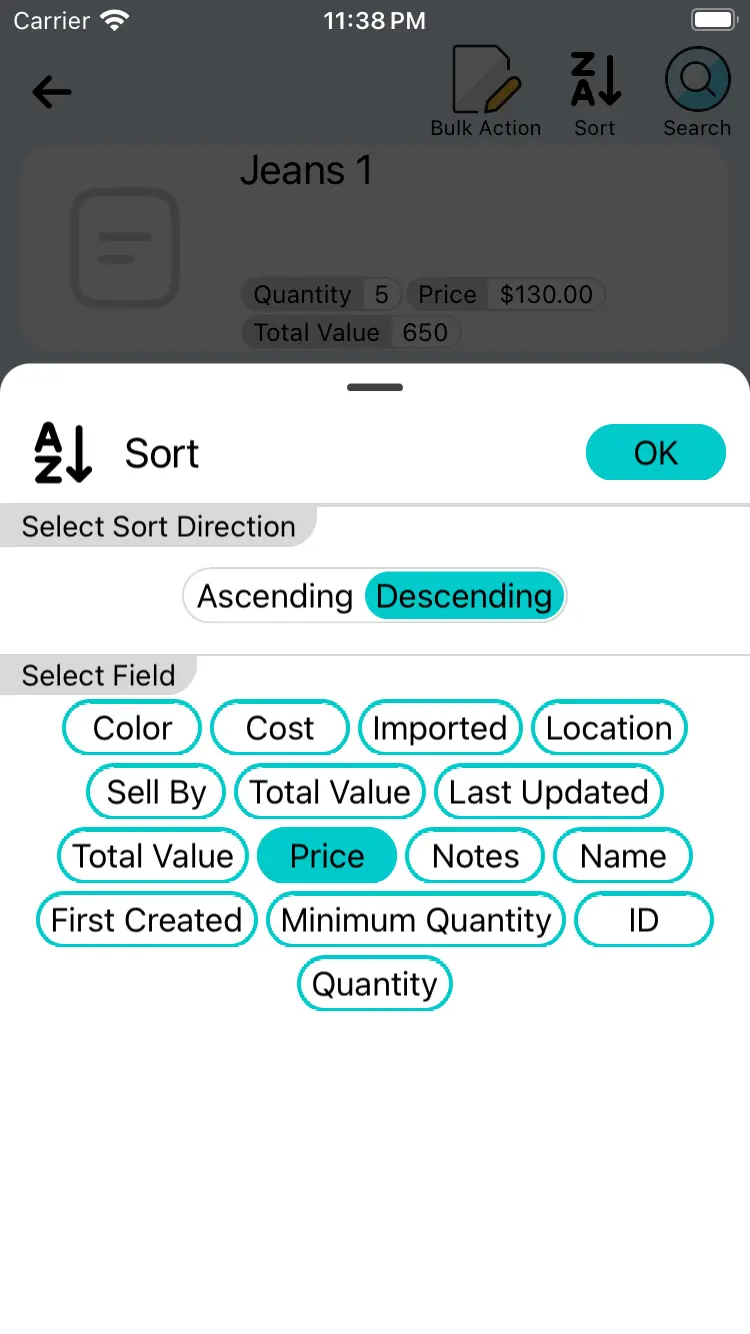
- The Sort menu will appear. Now, you can define your sort order:
- Step 1: Choose a Field to Sort By. Select any of your available fields from the list. This can be a default field like
Nameor any custom field you have created, such asStock LevelorPurchase Date. - Step 2: Choose the Direction. Select either Ascending or Descending.
- Step 1: Choose a Field to Sort By. Select any of your available fields from the list. This can be a default field like
- Tap Apply or Done. Your list will immediately reorder according to your selection.
Understanding Sort Directions
The terms "Ascending" and "Descending" change their meaning depending on the type of data in the field you are sorting by.
| Field Type | Ascending (A-Z, 1-10, ↑) | Descending (Z-A, 10-1, ↓) |
|---|---|---|
| Text (e.g., Name) | Alphabetical order: A → Z | Reverse alphabetical order: Z → A |
| Number (e.g., Price, Stock) | Lowest value to highest value: 1 → 100 | Highest value to lowest value: 100 → 1 |
| Date (e.g., Expiry Date) | Oldest to newest: Past → Future | Newest to oldest: Future → Past |
Practical Sorting Examples
Sorting helps you gain instant insights and prioritize your work.
-
See Low-Stock Items:
- Sort by:
Stock Level - Direction:
Ascending - Result: Your items with the lowest stock quantities (0, 1, 2...) will appear at the top, telling you exactly what needs to be reordered.
- Sort by:
-
Find Overdue Maintenance:
- Sort by:
Last Service Date - Direction:
Ascending - Result: The equipment serviced the longest time ago will be at the top of the list, highlighting what is overdue.
- Sort by:
-
View Newest Inventory:
- Sort by:
Date Created - Direction:
Descending - Result: Your most recently added items will appear first, which is great for reviewing new stock.
- Sort by:
-
Organize Alphabetically:
- Sort by:
Name - Direction:
Ascending - Result: Provides a classic, easy-to-scan A-Z list of your items.
- Sort by:
Tips and Best Practices
- Your View is Your Own: Your sort preferences are unique to you. When you sort a list, it does not change the view for other team members, so you can organize your data without disrupting their workflow.
- Combine with Filtering: Sorting is even more powerful when used with filtering. First, filter your list to a smaller subset of items (e.g.,
Statusis[ For Sale ]), and then sort that filtered list (e.g., byPricedescending) to find your most valuable for-sale items. - Sticky Sorting: Maxilist remembers your last-used sort preference for each collection. When you leave and come back, the list will remain sorted the way you left it.
Frequently Asked Questions (FAQ)
Can I sort by a Multi-Select field?
No, sorting by a Multi-Select field is not currently supported.
Does sorting work offline?
Absolutely. Sorting operates on the data stored on your device, so it works instantly whether you are online or offline.
My list seems to be sorted randomly, why?
You may have inadvertently set a sort order. Tap the Sort button to check the current settings.